The phone app
The wisp apps for iPhone and Android are not out yet. Until they are, wisp works in your phone’s browser, and your agents can reach your phone with notifications you answer from the lock screen.
Join the waitlist
Leave your email at trywisp.dev/app.html#phone. It is only used to tell you when the app is out.
What the app will do
The app is built for each phone: Material design on Android, Apple’s look on iPhone. Every wisp feature is in it.
- Your computers, anywhere. Sign in to wisp Cloud with Continue with GitHub or Continue with Google. Your cloud wisp and every computer you put on the Grid show up; tap one to work there. Or add a computer over SSH: its address and your password or key, with its host key checked by a QR code.
- Tasks: start one, follow it live, answer its questions, and read the report.
- Swipe a task: right to Mark done, left to Save for later. Each swipe also has a button. Swipe the task’s header to go to the next or previous task.
- Crew as stories: a row of faces at the top of Tasks. A ring shows who is working, who has a new report and who is waiting on you. Tap a face to see their story, and reply to it.
- Notifications that let you answer or approve without opening the app.
Until then: wisp in your phone’s browser
Your phone needs a wisp it can reach. Pick one:
- Your cloud wisp. Sign in at grid.trywisp.dev. It runs on a server, so it works when your laptop sleeps.
- Your own computer, on the Grid. Turn it on below, then open your Grid address on the phone. No SSH and no open ports.
On home, the tip Reach this wisp from anywhere has Set up. Or open ⌘K → Settings → Machines → Reach this computer from anywhere.
In the browser (wisp --browser, or your cloud wisp) it’s the same window, menus and keys.
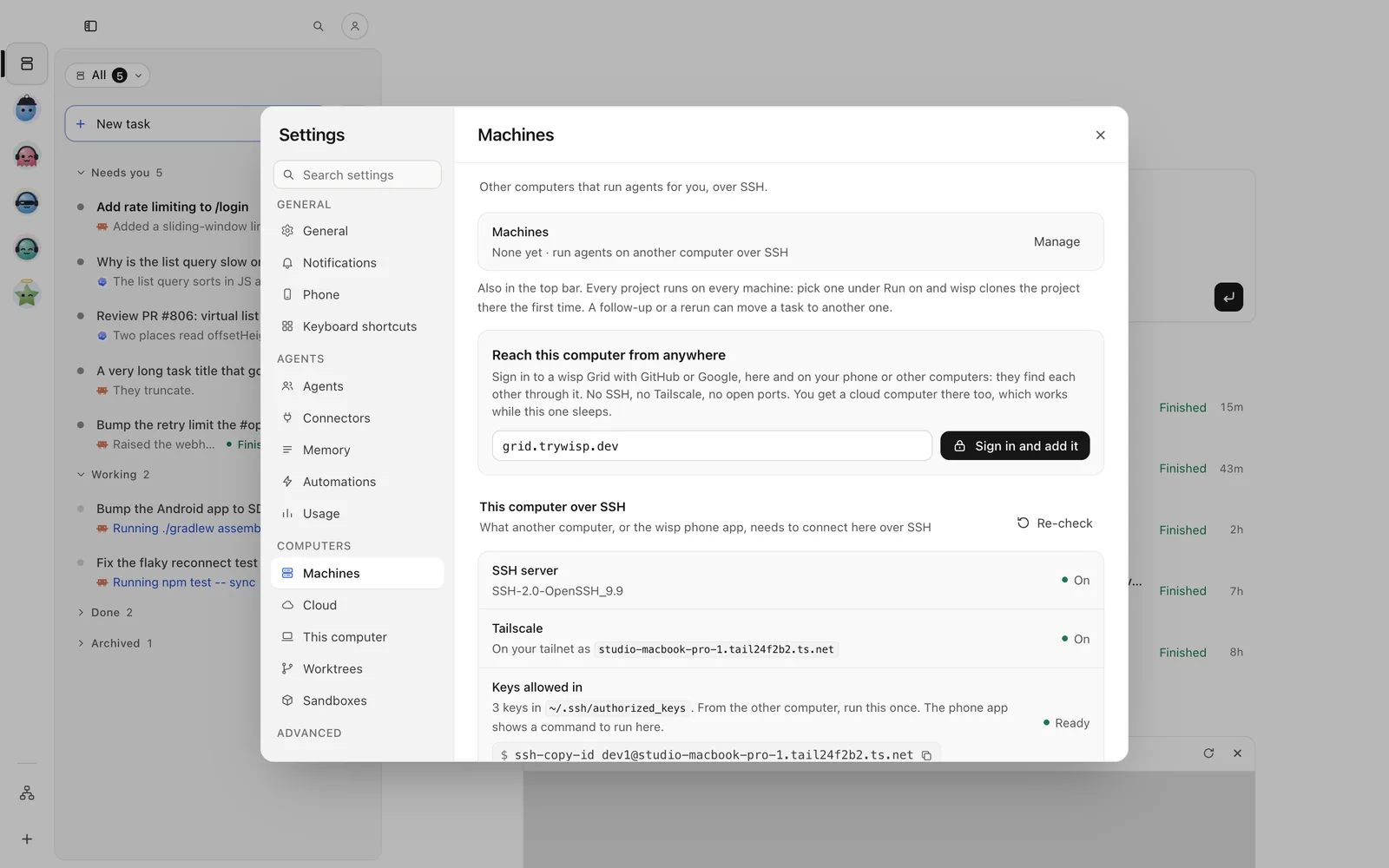
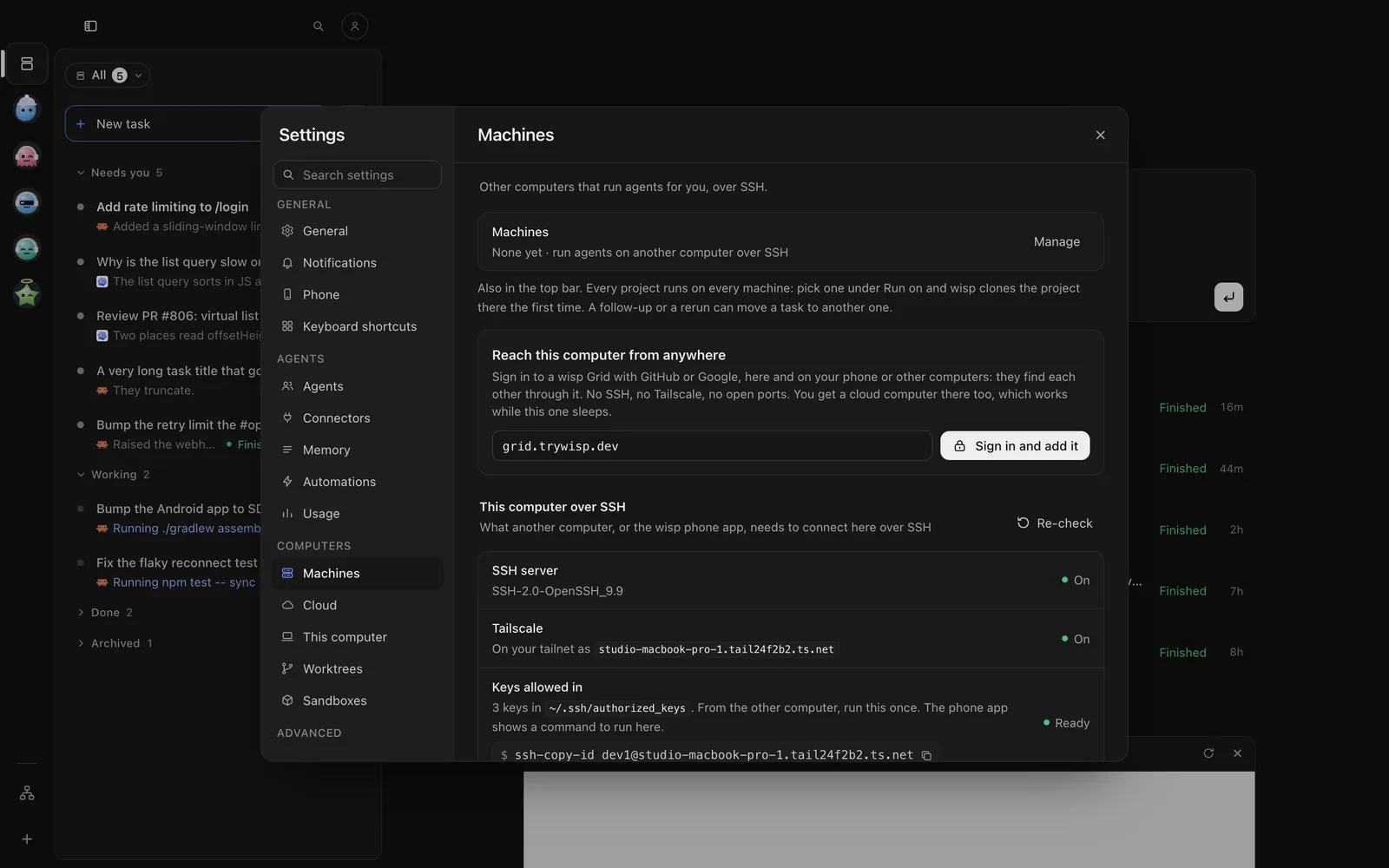
This is switched on at the computer itself (see the Desktop app tab). Then, in the phone app, open Computers and sign in to wisp Cloud with GitHub or Google: the computer shows in the list.
Send /grid-client computer --on.
wisp computer on # put this computer on your Grid (--grid <url>: sign in there first)wisp computer statuswisp computer offOn the phone, open the page and add it to your home screen. It then opens full screen, like an app. On iPhone: Share → Add to Home Screen.
Notifications on your phone
wisp can tell your phone when a task finishes or needs you, with buttons to answer. Set it up in avatar → Settings → Phone. Two ways work today:
- ntfy: switch it on and wisp picks a long, random topic. Install the ntfy app, subscribe to the topic, and tap a button on a notification to answer. Answers are signed, so nobody else can send them.
- Telegram: make a bot with @BotFather, paste its token, and send your bot the link code. Answer with buttons or in your own words.
Open the person button in the top bar → Settings → Phone: pick ntfy or Telegram, follow Set it up, then Send a test.
Tap the person button at the top of Tasks → Settings → Phone, and set it up the same way.
Send /channels setup ntfy --enabled --notify asks,finished, then /channels test.
wisp channels setup ntfy --enabled --notify asks,finishedwisp channels status # what each channel still needswisp channels test --channel ntfySlack, Discord and email are in the same place; see From Slack and Linear.