
Crew and check-ins
A crew member is an agent that stays. It has a name, a role, a brief it follows on every job, a kit of skills, and a notebook it keeps between jobs. You give it jobs; it can also check in on its own, on a schedule, and wake up when something happens. Each job is a task you can open, follow up and ship.
Add a member
Press Add a crew member (the + in the crew rail, on the far left). Give them a Name, a Role, and under Their job what they look after and what they should never do. Pick the Harness, the Mode, the Project folder, how often they Check in, and Jobs at once. Then Add to your crew.
In the browser (wisp --browser, or your cloud wisp) it’s the same window, menus and keys.
Open the Crew tab and tap Add. Give them a Name, a Role and Their job, pick the harness and how often they check in, then Add to your crew.
Press g then c for the crew view, then n for a new member.
wisp crew create --name Ada --role reviewer --agent codex --mode plan \ --brief "Review every PR the crew opens. Never merge." --cron "every weekday at 9"wisp crew # your crewOr declare them, and share them with the repo:
crew: ada: role: reviewer agent: codex mode: plan brief: "Review every PR the crew opens. List what you would fix. Never merge." cron: "every weekday at 9" parallel: 1Give a job
Click the member in the crew rail. Type in Give Ada a job… and press Enter. In any other task, write
@ada … in the reply box: the job is about that task, and Ada’s answer lands under your message.
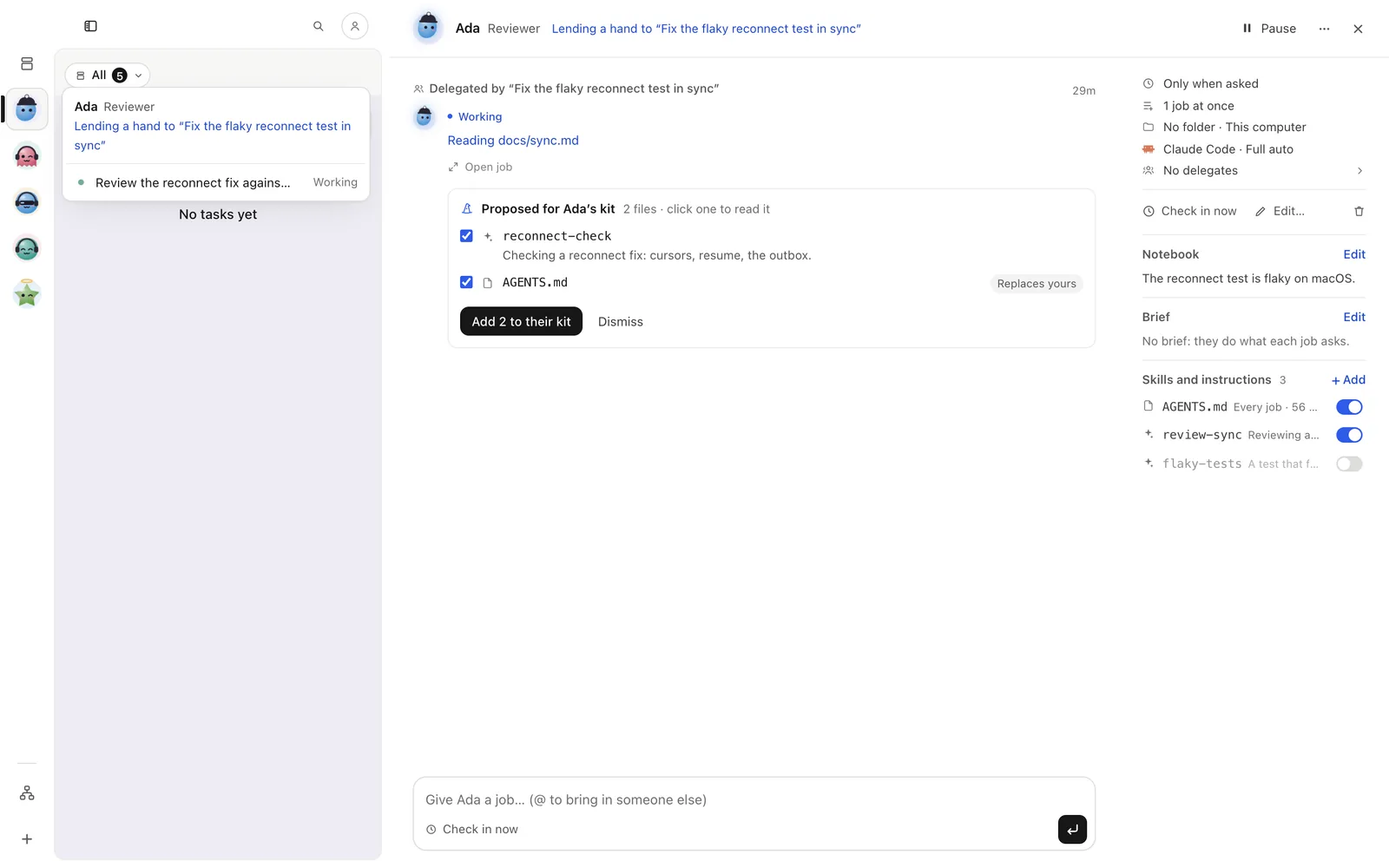
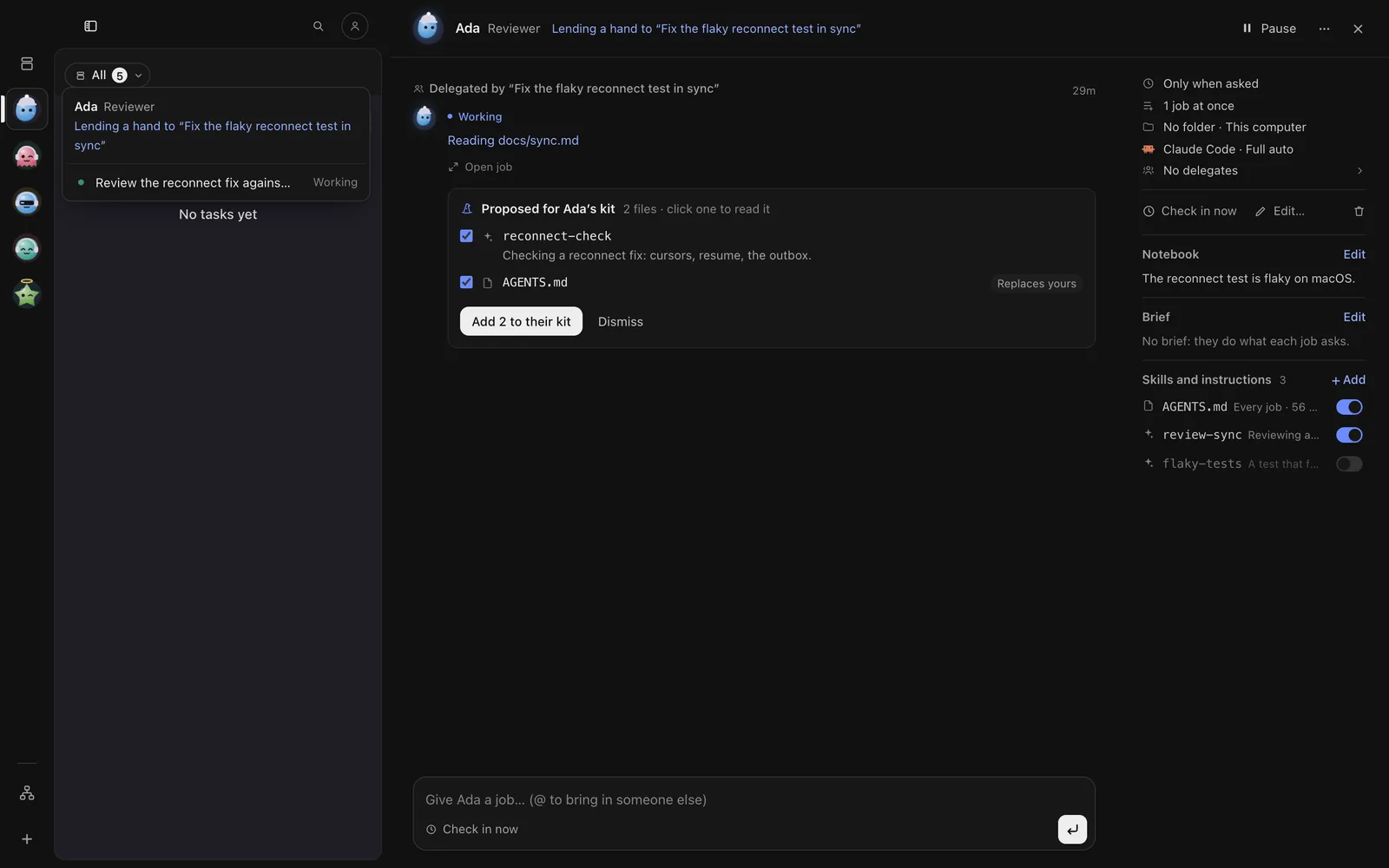
Open the Crew tab and tap the member. Type in Give Ada a job… and send. In any task, write @ada … in the
reply bar: the job is about that task, and Ada’s answer lands under your message.
In the crew view (g c), select the member and press a. Or, in any task, write @ada … in the reply box.
wisp crew assign ada "update the changelog for the last release"wisp crew ask <task-id> ada "can you check this?" # in a task: the answer lands under your messagewisp ls --crew ada # Ada's jobsCheck-ins
A check-in is a job the member gives itself: it looks at what it looks after and reports, or stays quiet when nothing is new. Checks in takes Only when asked, Every 30 min, Hourly, Every morning, Weekday mornings, Mondays, On call, or your own words (“every 2 hours”).
On the member’s page: Check in now. Pause stops check-ins, triggers and delegations until Resume.
Crew tab → the member: Check in now, Pause and Resume are on their page.
In the crew view: c check in, w wake, p pause, u resume, x remove.
wisp crew checkin adawisp crew update ada --pausedwisp crew update ada --cron "every 2 hours"wisp crew wake ada "the nightly build failed" # a job because something happenedMembers also wake on events: Also starts when on their page, or wakes: in a formula
(- { on: pr.opened }). See Automations, schedules and triggers.
Org: who hands work to whom
A member’s delegates are who its jobs can hand work to: other members, or agents on any harness. The Org page draws them as arrows. A job that was itself delegated works alone, so work never goes round in circles.
Press Org at the bottom of the crew rail. Select a member to choose its delegates, or drag from a card’s handle onto another member. Drag a card to move it; Reset layout puts everyone back.
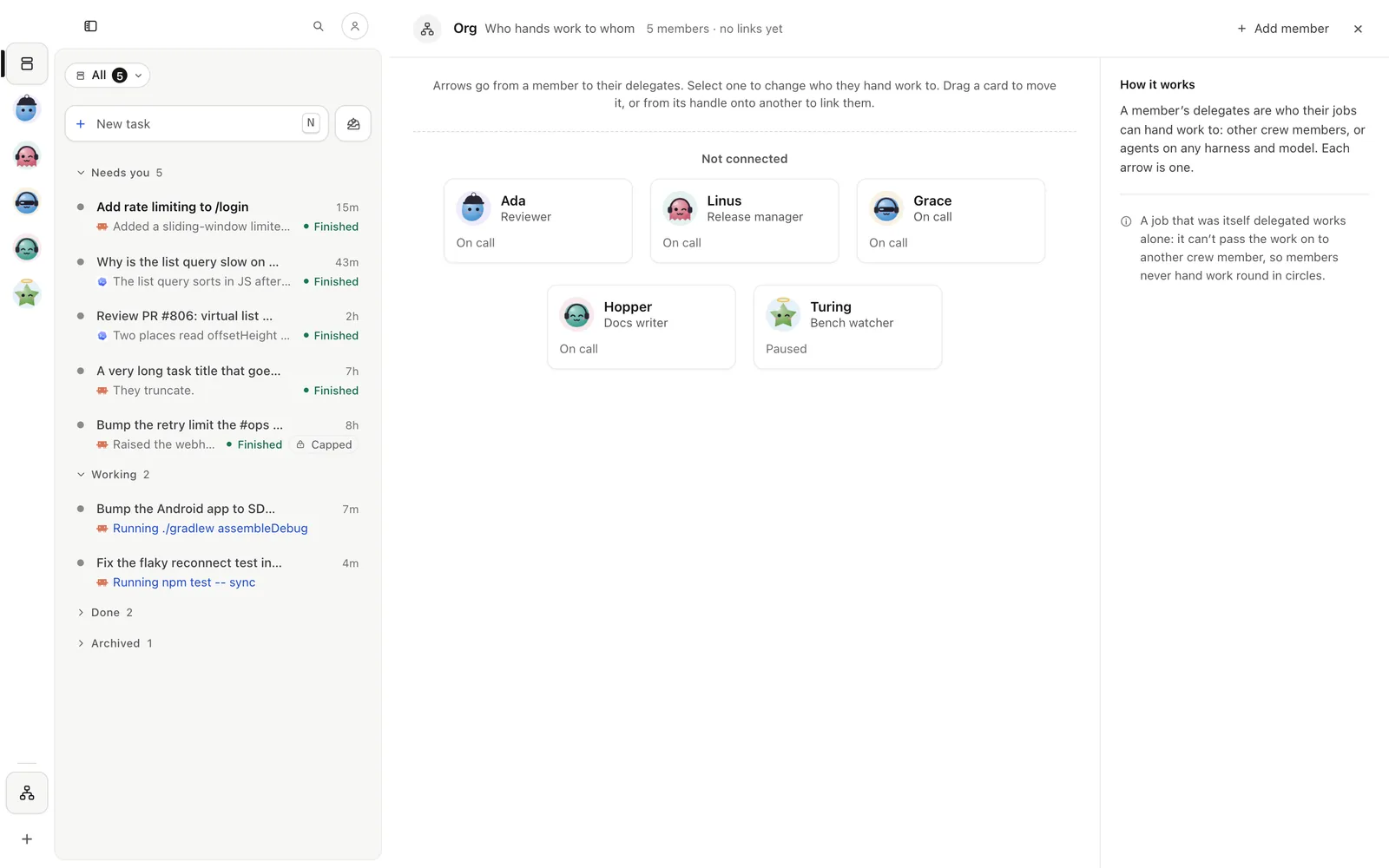
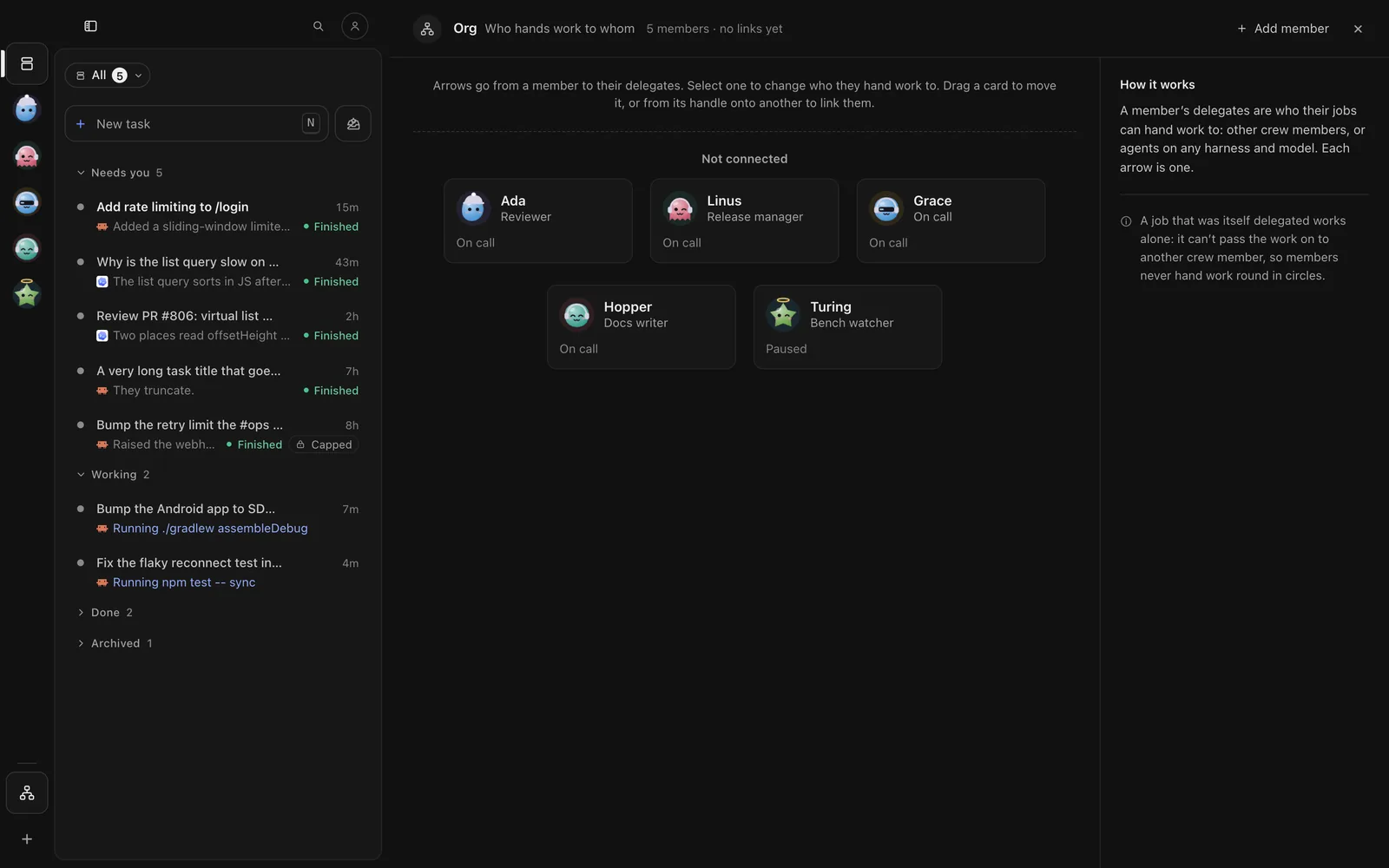
Open the Crew tab and tap Org. Tap a member to choose its delegates.
/crew graphwisp crew graph # who wakes whomwisp crew update ada --team '[{"crew":"linus","why":"release notes"}]'Kit, notebook and track record
- Skills and instructions: an
AGENTS.mdthey follow on every job, and skills they read when a job needs one. Drop.mdfiles on their page. A member can propose additions; you accept them with Add to their kit. - Notebook: what they remember between jobs. Edit it on their page.
- Track record:
wisp crew statsshows how each member’s jobs went.
Share a crew
wisp crew export ada,linus # a crew file (refused while it holds a secret)wisp crew share ada,linus # a link through wisp Cloudwisp crew import --url <link> # review it; members come in pausedOn your phone
The phone app shows your busy crew as stories under the Tasks bar. A ring says who waits on you, who has a new report and who works. Tap one to see what they do now and their last report; swipe for the next member, down to close. Reply in the box at the bottom (Message Ada…), or rate the report Good or Try again. See Phone app.