
Make wisp your own
Everything in wisp is a plugin: the task list, Ship it, the crew, the channels. Yours plug in the same way, with the same API, so whatever a built-in can do, your plugin can do too. Pick the smallest step that does what you want.
1. Change a setting
Most changes are a setting. Every one is in the settings reference.
⌘K (Ctrl-K on Windows and Linux) → Settings, or the person button in the top bar → Settings. Search settings at the top finds a setting by name.
In the browser (wisp --browser, or your cloud wisp) it’s the same window, menus and keys.
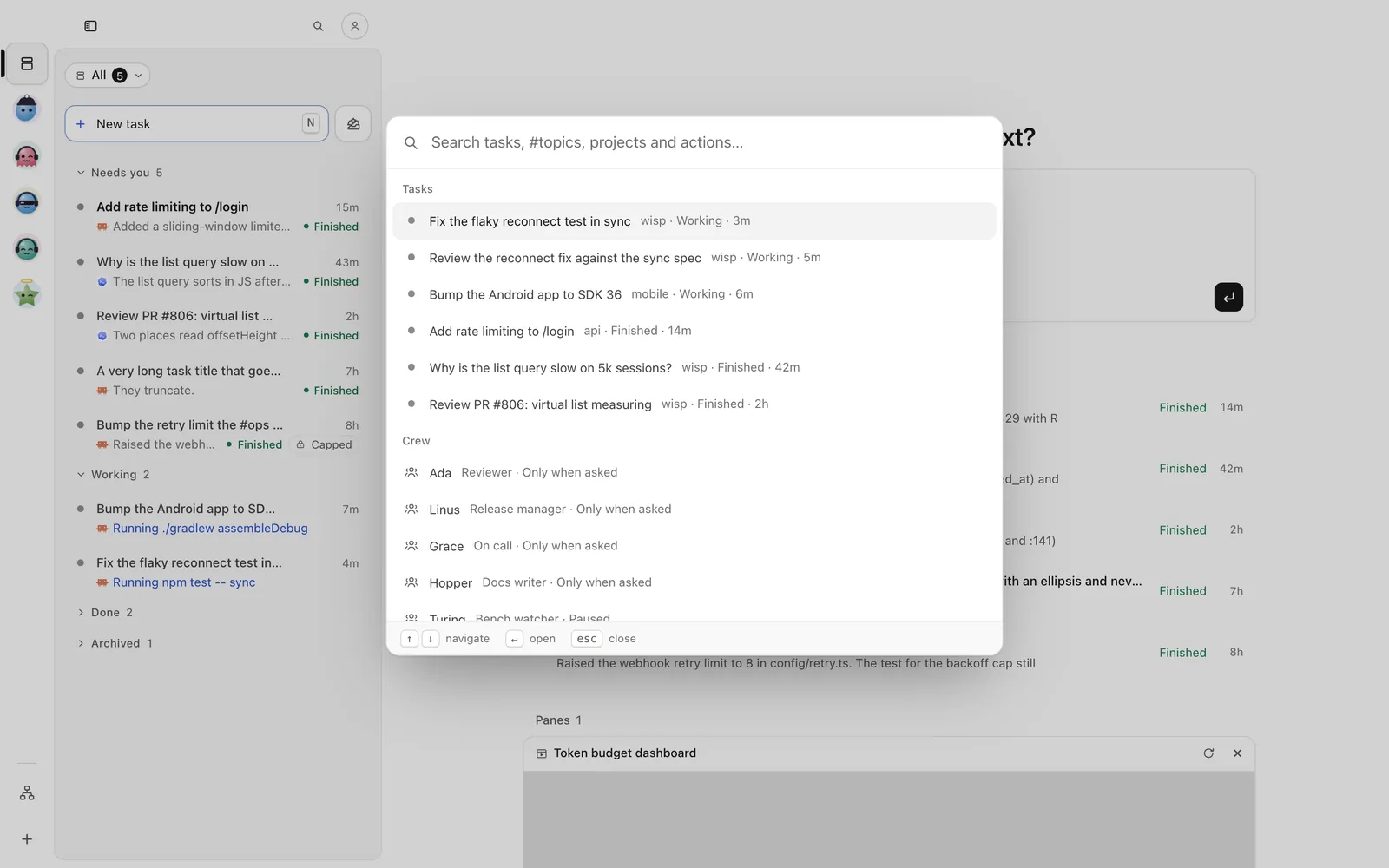
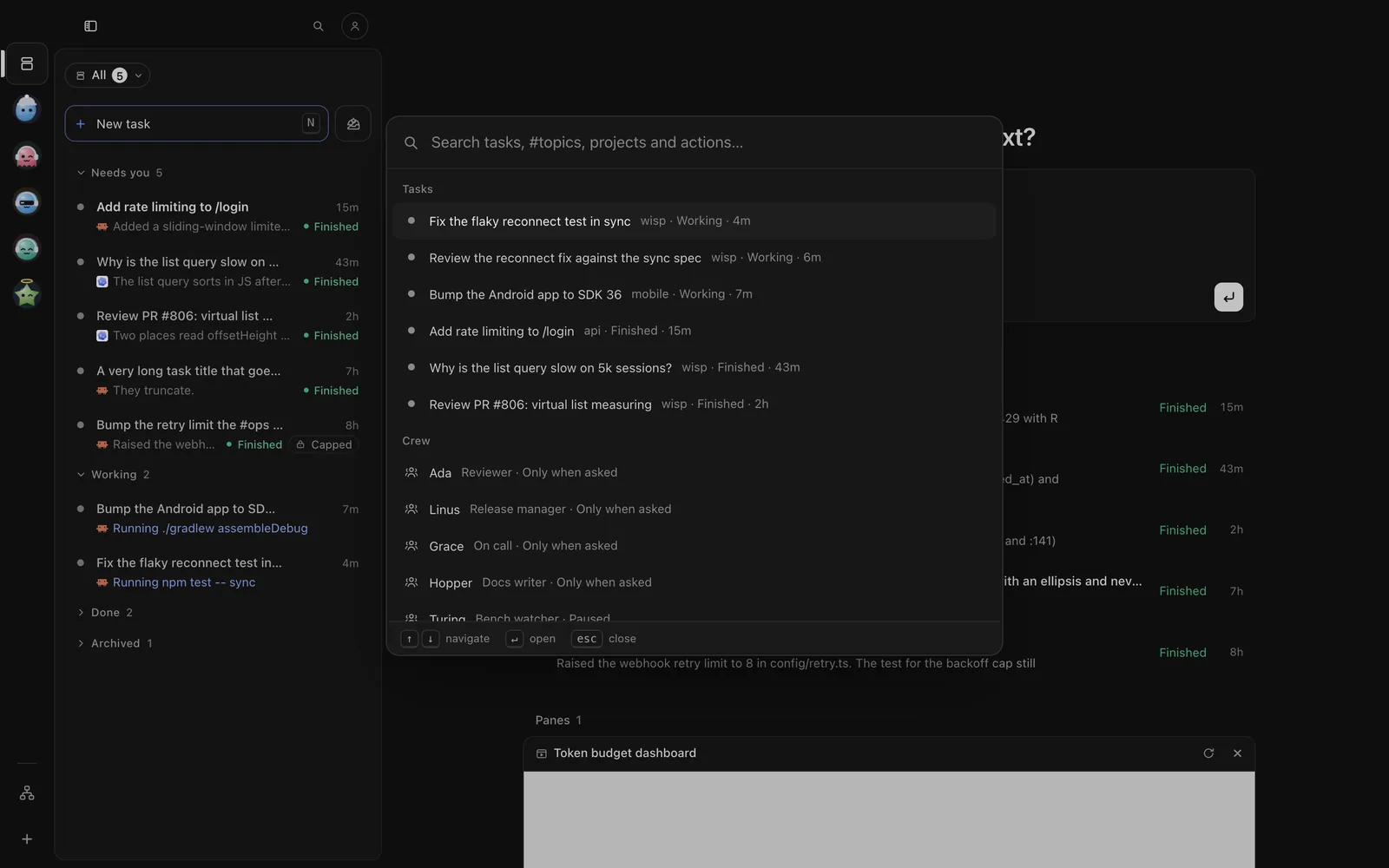
Tap the person button at the top of Tasks, then Settings. The search field at the top of Tasks also finds a setting by name.
Press g then , for the settings view, or Ctrl-K and type the setting’s key.
wisp settings listwisp settings get review.harnesswisp settings set review.harness other2. Declare it in a formula
Agents, skills, MCP servers, tasks, workflows, triggers and the crew can be declared in your repo, reviewed and shared like code. Settings too:
settings: review.harness: other worktrees.onDone: askSee Formulas and Build a software factory as code.
3. Switch a built-in off
Don’t use a part of wisp? Switch it off. Everything it made goes with it: its timers, processes and watchers. Switch it back on any time.
Settings → Advanced → Plugins. Each built-in has its switch; one that others need says why.
Person button at the top of Tasks → Settings → Advanced → Plugins. Each built-in has its switch.
/plugins set-enabled --id wisp.slack --enabled falsewisp plugin # every plugin, on or offwisp plugin disable wisp.slackwisp plugin enable wisp.slack4. Ask an agent to write a plugin
Describe the change (“a floating button that opens all my open PRs”) and an agent writes it as a plugin. It writes a plugin, never your code. The agent gets four extra tools:
wisp_plugins: the plugins you have, and each one’s manifest.wisp_plugin_schema: the whole plugin reference, with worked examples.wisp_plugin_data: a sample of the real answer of a command the plugin will call, so it reads the right fields.wisp_plugin_check: wisp’s own checker, run on the plugin before it’s installed.
Settings → Advanced → Plugins → Cast a plugin. Describe the change and press Enter. When the task ends, the plugin is installed off: read what it asks for, then Switch it on.
Person button → Settings → Advanced → Plugins → Cast a plugin. Describe the change and send. When the task ends, the plugin is installed off: read what it asks for, then Switch it on.
Start a task (n) that asks for it: “write a wisp plugin in ~/.wisp/plugins/hello that adds a button opening my
open PRs”. The agent checks it with wisp_plugin_check before it’s done. Then install it (below).
wisp plugin new hello # a starting folder in ~/.wisp/plugins/hellowisp "write a wisp plugin in ~/.wisp/plugins/hello that adds a button opening my open PRs"5. Write one yourself
A plugin is a folder with a wisp-plugin.json:
| Kind | What’s in the folder | Good for |
|---|---|---|
| Declarative | the manifest only | settings, a theme, commands it calls on events |
| With UI | the manifest and a ui.js |
a Settings page, a pane, a button, a card in an answer |
| Exec | the manifest and a program in any language | new commands, reacting to events, talking to other tools |
Your first plugin builds an exec plugin step by step. Plugin examples has complete UI plugins to copy, and the manifest reference lists every key and component.
Install, share, remove
What you install starts off, and runs only with the permissions its manifest asks for, never yours. Installing a newer version replaces the old one, and it stays off until you switch it on again.
Settings → Advanced → Plugins → Install a plugin: a folder a colleague sent, or its git URL. You see what it asks for, then Switch it on. Trust lets it run as its own process with your environment, and its styles apply; only trust code you’ve read.
Person button → Settings → Advanced → Plugins → Install a plugin, with its git URL. You see what it asks for, then Switch it on. A folder on your computer is easier from the Desktop app tab.
/plugins list/plugins set-enabled --id user.hello --enabled truewisp plugin install ./my-plugin # a folderwisp plugin install https://github.com/you/wisp-hello # a git repowisp plugin enable user.hellowisp plugin trust user.hello # its own process, your environment, its styleswisp plugin remove user.helloTo share a plugin with your team, put it in a git repo, or list it in a formula (plugins:) so wisp apply brings
it in.
Safe by default
- A plugin reaches only what its
permissionsname. A call outside them is refused. - An untrusted plugin runs fenced in: no page, no network, no storage. It draws with wisp’s components only, so it can’t look like something it isn’t.
- A plugin talks to the rest of wisp only through public commands and events, so the built-ins it uses can change inside without breaking it.