
Automations, schedules and triggers
Automations start work without you. A recipe is a prompt you run again and again. A trigger starts a task when something happens: a time, a red CI run, a labelled issue, a task that finished, a webhook. It can start a new task, run a recipe or a workflow, wake a crew member, or follow up the task the event came from.
Recipes
A recipe is a saved prompt. A {word} in it becomes a field you fill in when you run it.
On a task, ⋯ at its top right → Task options › Save as recipe…. Or ⌘K → Settings → Agents → Automations → Recipes → Manage → New recipe. Run one from + → Recipes in New task’s footer.
In the browser (wisp --browser, or your cloud wisp) it’s the same window, menus and keys.
On a task, ⋯ (iPhone) or ⋮ (Android) in its top bar → Keep and copy › Save as recipe…. Run one from New task: ⋯ (More options) → Recipes.
Ctrl-K and type the recipe’s name, or send /automations task run --name release.
wisp recipes # list themwisp run release 2.1.0 # values fill its {params} in order, or key=valueMake a trigger
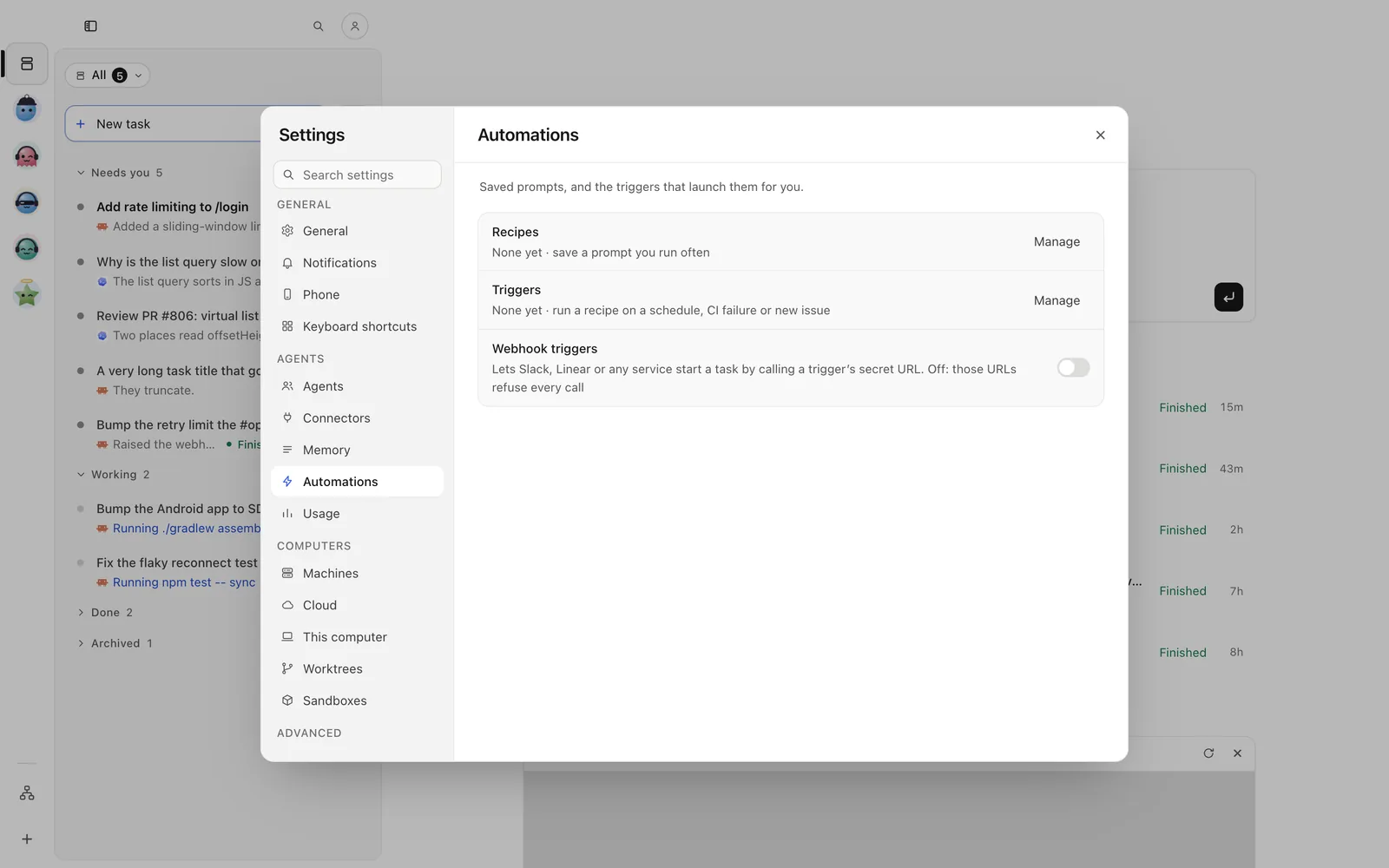
⌘K → Settings → Agents → Automations → Triggers → Manage → New trigger. Pick what starts it: Schedule, CI failed, Issue labelled, Task finished, Task marked done, Webhook called, Slack mention, Linear issue created or Sentry alert. Say what to Run (a prompt or a recipe), where, and with which harness, then Create trigger. Under Send to, pick a crew member to make it their job.
Tap the person button at the top of Tasks → Automations → Triggers → Manage → New trigger. The choices are the same as on the desktop; finish with Create trigger.
Press g then a for the automations view: f fires the selected trigger, t tests it (a dry run that starts nothing).
wisp automations trigger lswisp automations trigger test weekday-triage # the decision and the filled prompt, starting nothingwisp automations trigger fire weekday-triagewisp automations trigger log weekday-triage # its deliveriesOr declare them in your repo’s .wisp/ folder:
triggers:  weekday-triage:    on: schedule    cron: "every weekday at 9"    tz: Europe/Zurich    prompt: "Look at the issues opened since yesterday and label them."
  tests-on-change:    on: files.changed    debounce: 2m    prompt: "Run the tests for what changed and report failures only."
  fix-red-ci:    on: ci.failed    followUp: true            # a follow-up to the task whose PR failed    cooldown: 30m
  after-done:    on: task.done    if: "event.payload.project == 'api'"    prompt: "Write release notes for {event.summary}"
on: takes any event wisp emits: wisp events ls lists them, and the triggers reference
says which plugin offers each.
Keep it in bounds
| Field | What it does |
|---|---|
concurrency |
skip (default), queue, replace or parallel:N when it fires while a run is going |
rate |
at most this many runs: 5/h, 20/d |
debounce |
events within this window become one job |
cooldown |
after a failed run, wait this long |
when |
only these days and hours: { days: [mon, tue, wed, thu, fri], hours: "9-18" } |
budget |
{ perRun: 5, perDay: 40 } in dollars |
approval |
the job waits for your yes before it starts |
A job waiting for approval shows in the app; from a terminal,
wisp automations trigger approve <trigger> <job> --yes.
Webhooks
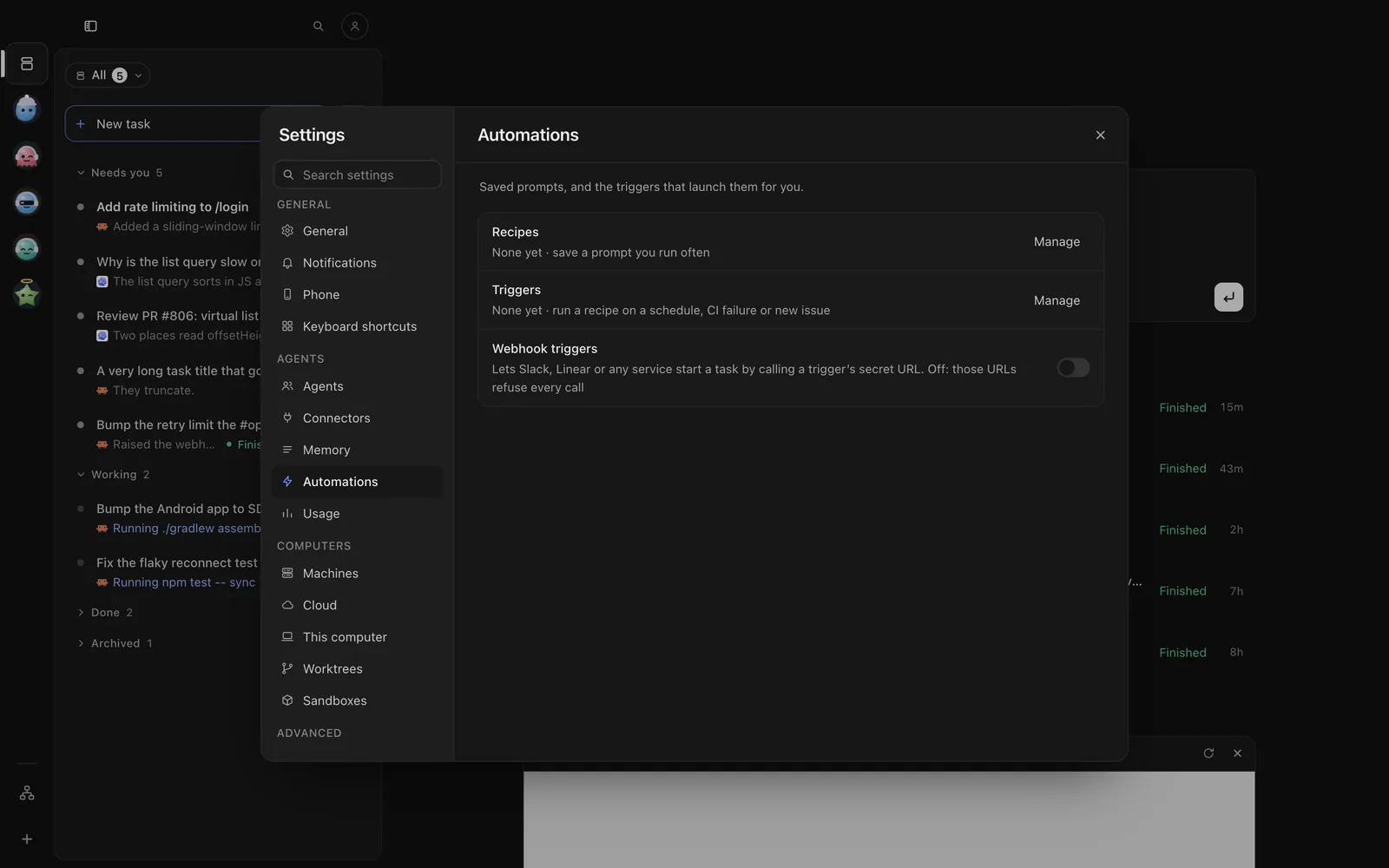
Anything that can POST can start a task. Each webhook trigger has its own secret URL, shown on the trigger once you create it. Switch on Settings → Agents → Automations → Webhook triggers first; while it’s off, every URL refuses.
triggers: sentry: on: webhook header: Sentry-Hook-Signature secret: "${secret:SENTRY_HOOK}" mode: plan prompt: "A Sentry alert: {event.summary}. Find the cause; don't fix yet."With header, each call must be signed with the secret, which is never sent, only checked. Set it with
wisp secret set SENTRY_HOOK. What comes from outside can steer the agent, so start webhook tasks in Plan.
Declared tasks and workflows
A declared task can carry its own schedule, and a workflow chains several:
tasks: deps: prompt: Update the dependencies with patch releases and run the tests schedule: "every day at 2" worktree: truewisp run deps runs it by hand. For workflows, see
Build a software factory as code.
Later, on one task
Start later (in New task’s +, or the reply box’s) sends a task or a follow-up at a time you pick. A turn that hit a usage limit can carry on when the window resets.
wisp later add <id> --text "check that the deploy went out" --in 60 # minutes from nowwisp later list <id>What happened, and why
wisp events tail --type 'ci.*' # recent eventswisp events why <seq> # what caused one, root firstwisp events parked # events a trigger gave up on, and why