
Budgets and usage
wisp runs your agents on your own plans. This page shows how to see what each task takes from them, and how to keep work that runs on its own from using up a window you need.
Usage windows
Claude Code and Codex report your plan’s usage windows on every run: the 5-hour window and the weekly one (and, on some Claude plans, separate Opus and Sonnet weeks). wisp keeps the latest reading for each account and knows which tasks took which part.
Cursor, Antigravity and Copilot report tokens but not cost (Copilot bills in premium requests). Their turns count in turns and outcomes, not in spend.
See your usage
- Home shows each window’s use beside your tasks. Click it to open Settings → Usage (or ⌘K → Settings → Agents → Usage).
- Usage has Plan budget (each account’s windows, when they reset, and Where the window went, task by task), then Spend, Turns, Worked and Questions over the last 7 days, with charts By project and By harness · model.
- The harness picker in New task’s footer shows how much of each account’s window is used.
In the browser (wisp --browser, or your cloud wisp) it’s the same window, menus and keys.
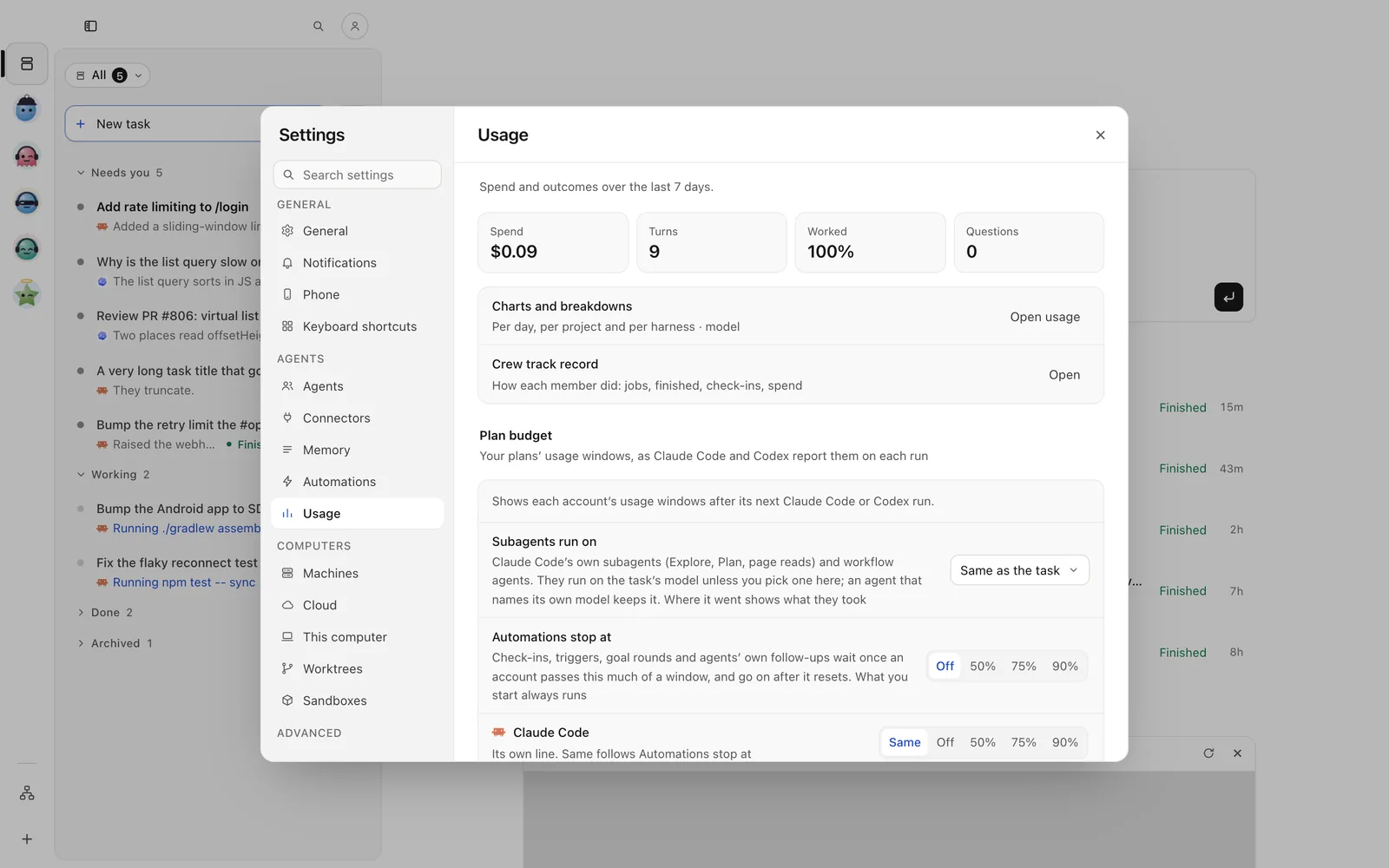
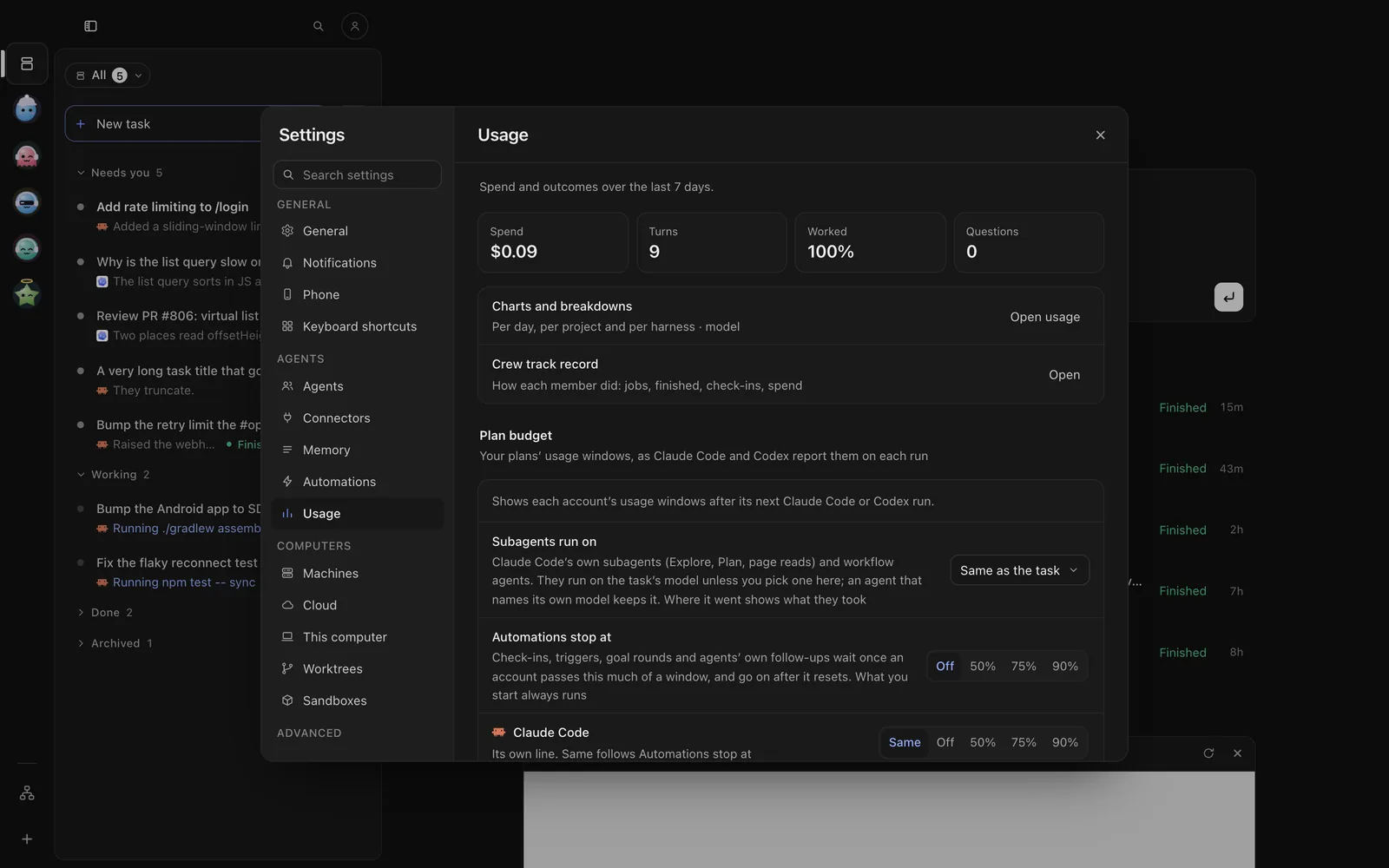
- Tap the person button at the top of Tasks → Settings → Agents → Usage. It holds the same Plan budget, Spend, Turns and charts.
- In New task, tap the harness row: the picker shows how much of each account’s window is used.
Send /budget view claude --named for an account’s windows, or /budget plan-windows for each window this
period and the tasks’ parts of it.
wisp usage # your limits this periodwisp usage --agent claude # that harness's, by taskwisp budget view codex # an account's usage windowswisp budget compare claude # tokens per turn by account, per modelAsk near the limit
Before a task would take a 5-hour or weekly window past your line, wisp asks first. The default line is 90%. A task you start waits for your yes. Scheduled runs and crew jobs wait in Needs you until the window resets. Each yes moves that window’s line up a step until it resets.
⌘K → Settings → Usage → Ask near the limit: Off, 80%, 90% or 95%. When it asks, the New task box says how far the task may take the window, with Start anyway, Wait until … the reset, and Keep editing.
Person button → Settings → Usage → Ask near the limit. When it asks, New task shows Start anyway, Wait until … the reset, and Keep editing.
Send /settings set budget.limitHold 80 (or off, 90, 95).
wisp settings set budget.limitHold 80wisp "refactor the parser" --yes # go ahead past the line this onceKeep automations off your limit
Automations stop at sets where check-ins, triggers, goal rounds and agents’ own follow-ups stop on a window. They go on by themselves after it resets. What you start yourself always runs. Claude Code and Codex can each have their own line; Codex’s leaves room for your ChatGPT chats on a shared plan.
⌘K → Settings → Usage → Automations stop at: Off, 50%, 75% or 90%. Under it, each harness’s line is Same or its own.
Person button → Settings → Usage → Automations stop at, with each harness’s own line under it.
Send /budget set-stop autoStop 75, or /budget set-stop autoStopCodex 50 for Codex’s own line.
wisp budget set-stop autoStop 75 # off | 50 | 75 | 90wisp budget set-stop autoStopClaude same # same | off | 50 | 75 | 90wisp budget hold claude default # what holds this account's unattended workwisp budget reset-at claude default # when it can run againIn a formula:
budget: stopAt: "75" codex: "50" taskUsd: 5 # at most this many dollars per taskAt the limit
When a run hits its limit, Wait for the reset decides what happens. On, the task waits under Scheduled and
carries on in the same conversation when the window resets. Off (the default), it stops and asks you.
wisp settings set runtime.limitWait true turns it on.
With several accounts, a task you start skips an account at its limit. wisp never switches accounts to get around a limit on its own.
More in Settings → Usage
- Check Codex while work waits: while work waits on a Codex plan, wisp asks Codex every 10 minutes how its windows stand. A reset that comes early lets the work go at once. Nothing is spent.
- Drain watch: warns, here and on your phone, when an account’s last two hours took twice its usual share for the same work. Copy report puts the numbers in words for a support ticket.
- Spare allowance: when a weekly window resets within a day with a fifth or more left, home says so.
- Stop a run silent for: a run with no output for 30 minutes while its plan still moves is told to your phone. Pick a time to stop such a run by itself.
- Subagents run on: the model Claude Code’s own subagents use.